

|
Bachelor's Degree in Telecommunications Systems and in Network Engineering |

|
|
Notes on uninstalling and installing Proteus |
||
Sometimes, the installation of the software "Proteus9.x.SPx.exe" does not work as expected; many times because the computer does not establish connection with the licence server. Here you have some guidelines on how to start all over again.
Note: It is assumed that you are administrator of your computer.
1. Uninstall PRO
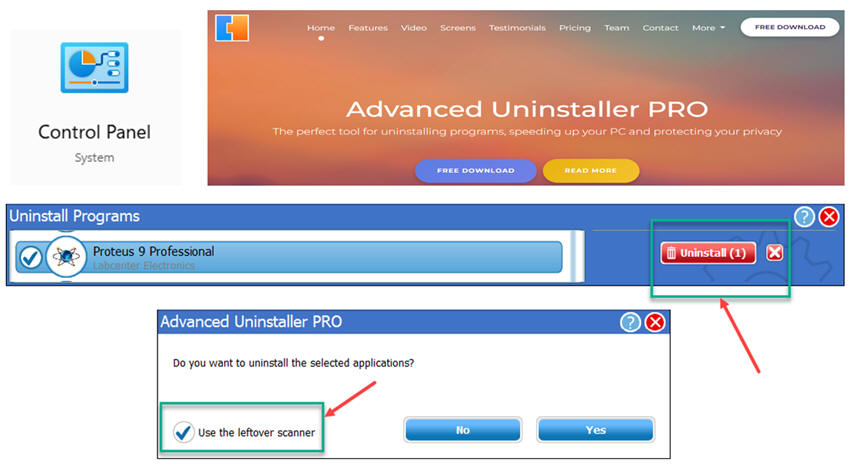
Instead of using the control panel system app to uninstall Proteus, you may try the software Advanced Uninstaller PRO free edition to get rid of many leftovers (registry entries) that will interfere with a new installation.
2. Registry Editor
Keep cleaning the PC running the Registry Editor. Delete everything related to "proteus", "licence" (with some relation with Proteus), and "Labcenter".
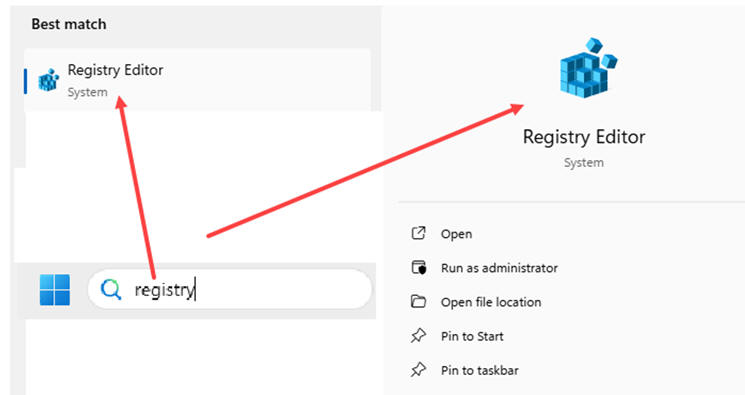
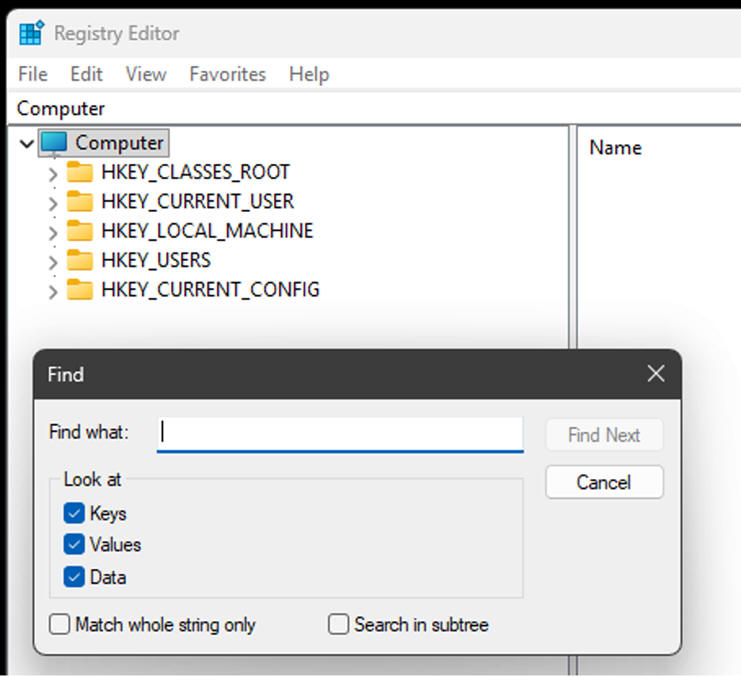
If you had older versions, this process may take time; you will find many entries from Proteus 6.0, Proteus 7.0, etc. After completing this task, restart your computer and verify that is nothing left anywhere about this words related to Proteus.
3. New Proteus installation
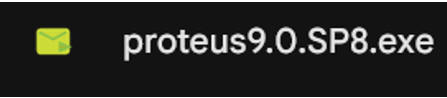
Download the latest software from our shared drive, and run it. For instance,
Newer releases to keep your software updated, can be downloaded and upgraded automatically from the main Proteus main.
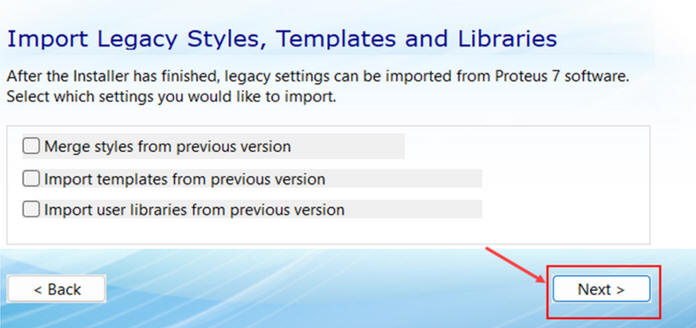
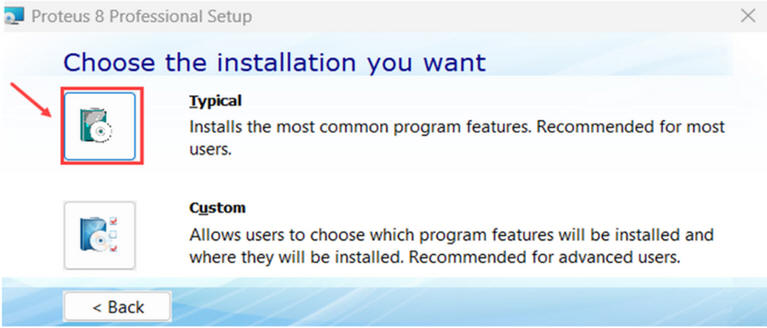
Note: This window asking you to choose the server based license key, may not open when installing. Thus, go ahead with the complete installation and open the application.
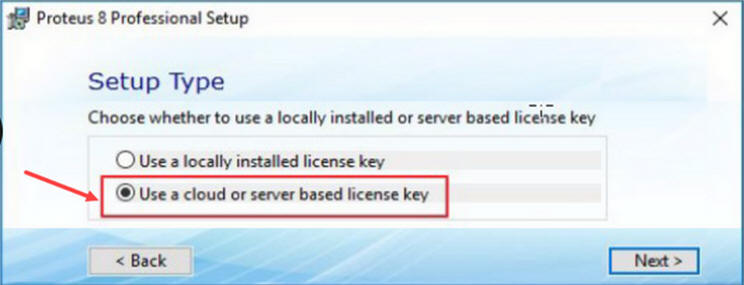
Run the application.
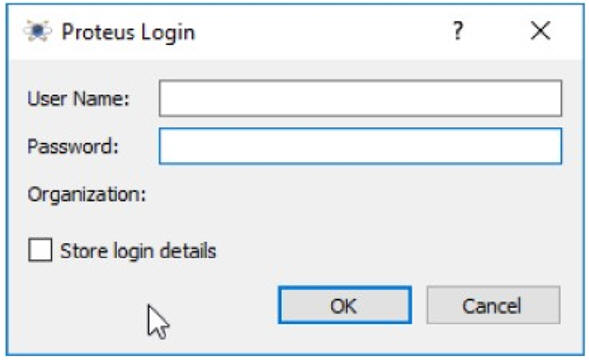
You may be asked for your user/password before accessing the main home page:
Or, instead, you may see the home page but with no attached licence yet.
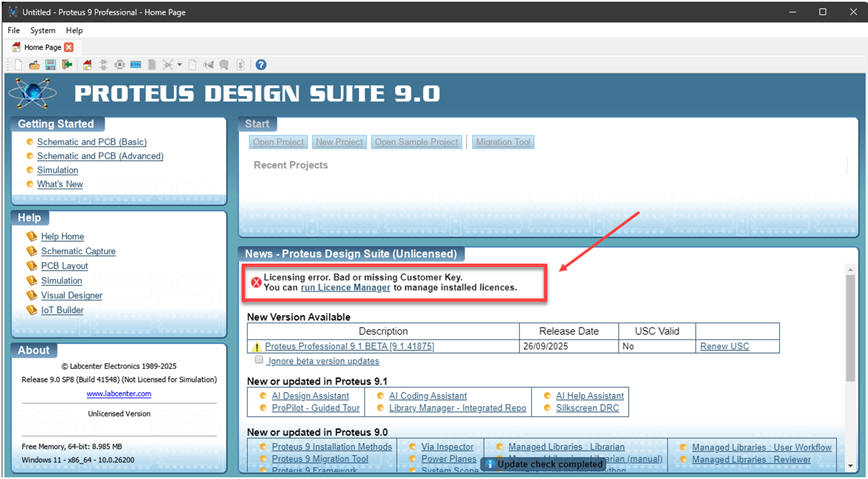
It means that no license were found in your computer from previous installations. Therefore, we will add it now using the License Manager application.
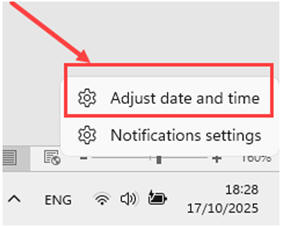
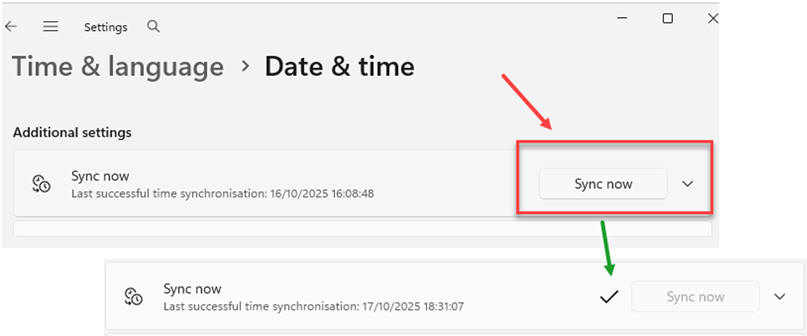
4. Synchronising your computer time
Sometimes reaching the cloud server is not possible unless you have your computer synchronised.
5. Licence Manager
Run the Licence Manager app to supply the server address, user and password. Each EETAC subject may have different users and credentials; contact your instructors.
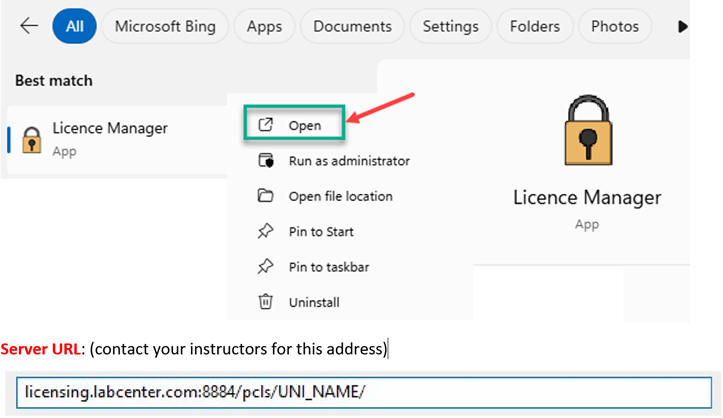
(Including all '/'). Please note that Outlook or other email clients may recognise the above link as a Web address and automatically add http:// in front of it. This would then be incorrect.
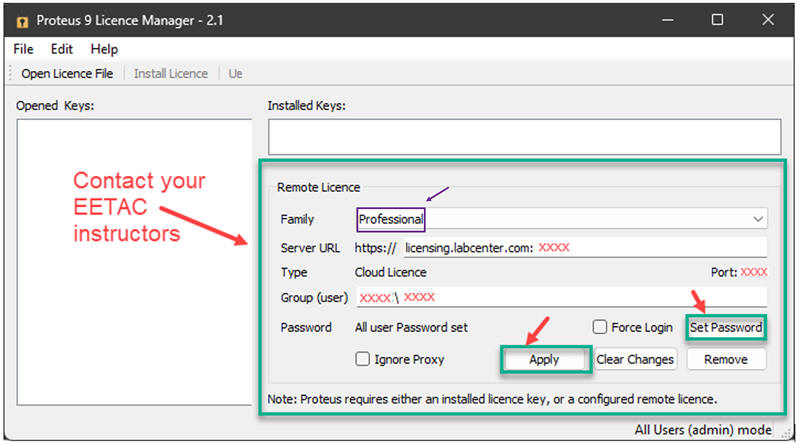
User (depends on the subject, contact your instructors)
Password (depends on the subject, contact your instructors)
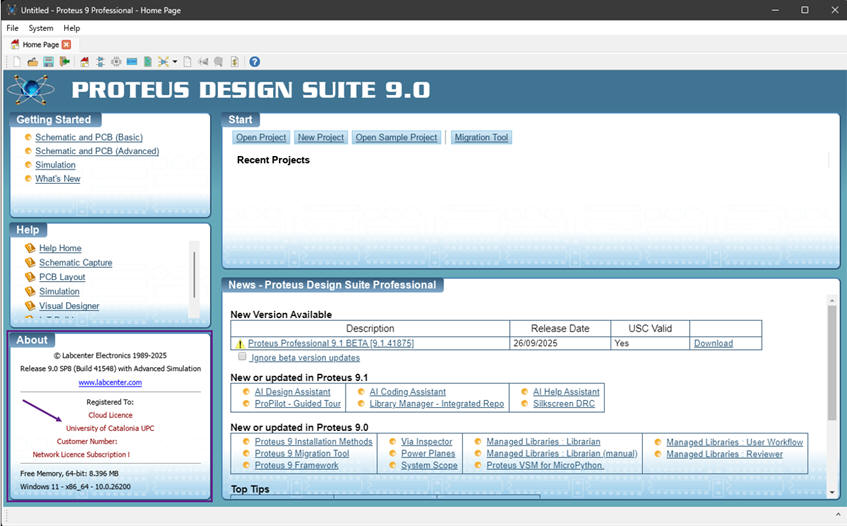
Finally, a correct installation will show a main page like:
Finally, to verify that the software is running correctly, you can try to simulate any sample or one of our circuits. For instance, from this CSD unit on Proteus.
Note: If you still are experiencing issues with your installation, you may get extra support contacting us at digsys.