

|
Bachelor's Degree in Telecommunications Systems and in Network Engineering |

|
|
Installing Proteus-ISIS: Computer simulation (virtual electronics laboratory) based on SPICE algorithms |
||
Proteus is a virtual laboratory, a SPICE based electrical simulator. Its advantage for our courses is that you can simulate both analogue and digital circuits based on classic components and also microcontrollers.
You as EETAC student have to download and install the current professional version in your home or portable computer and run our cloud licence.
 |
Fig. 1. Proteus logo. Browse the Labcenter web page to see the software features. |
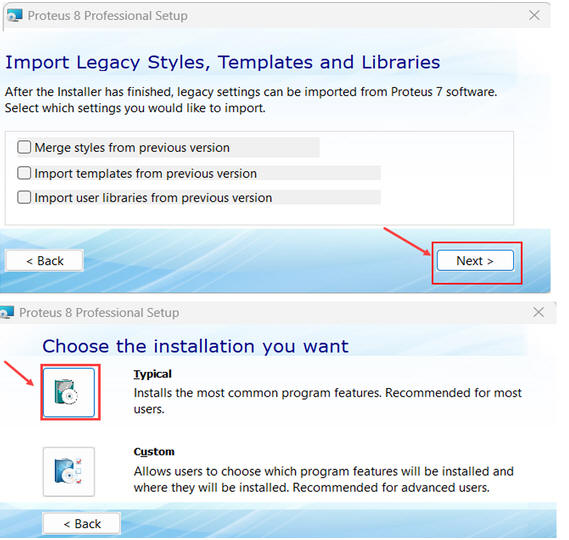
As a beginner, you can set up a typical installation on your PC. Do not import or merge libraries or styles. Below on this page, you will find examples of how to avoid starting from scratch with your schematics and simulations. It is much better and time-saving to copy and adapt from an existing circuit.
 |
|
Fig. 2. Typical installation. |
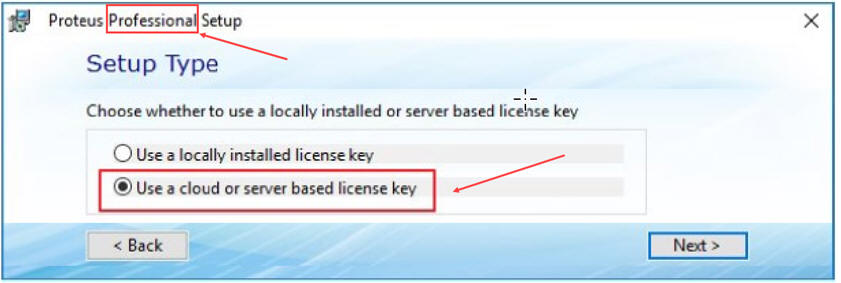
Do not search for student editions of this software; we will install the professional setup using a server licence.
 |
|
Fig. 3. Choose server licensing for this professional setup. |
Type in the licensing server supplied by your instructor. It will look similar to this:
 |
|
Fig. 4. Licensing server address. |
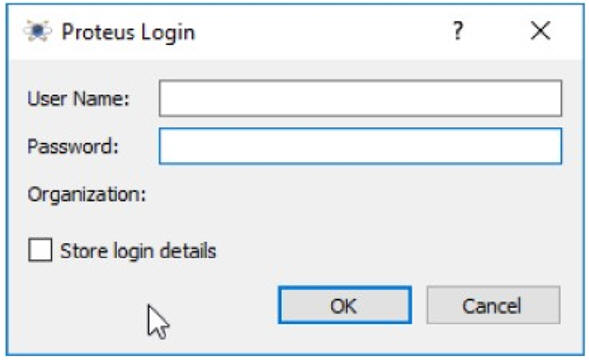
During the installation, you may be asked for user and password:
 |
|
Fig. 5. Licensing server address. |
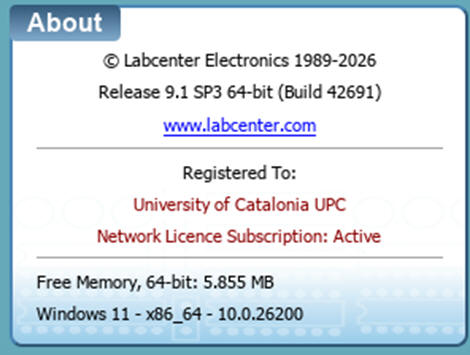
Once installed, the About window in the home page will be showing something like this:
 |
|
Fig. 6. Licensing server address. |
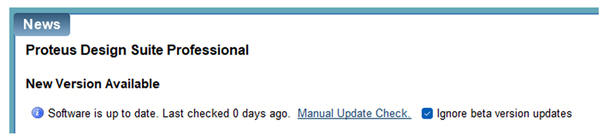
If needed, download updates from the News section on the software's homepage to keep it up to date with the latest release.
 |
|
Fig. 7. The News section displays the latest available release. Do not install beta versions. |
NOTE In case of complications, these are some additional procedures on how to troubleshoot installation issues.